
Take-off from difficult drawings: flattened Revit exports, no-legend sheets and scanned PDFs
Most tender drawings are not clean CAD. This is how to diagnose a sheet before you count it, what each kind of difficult drawing loses, why automatic counting goes wrong on ELV symbols, and the checks that verify a quantity you could not count cleanly.
- Doc no
- TQ-BLG-261014-WZ
- Rev
- Issued
- Author
- Zakaria Syed
- Category
- Take-off
- Reading
- 8 min
To do a take-off from scanned drawings, flattened exports or sheets with no legend, first diagnose what the sheet still carries: layers, block names, searchable text, a stated scale, device tags. Count with whatever survived, and use a second, independent method (tags against symbols, doors against hardware, plans against the riser) to check every category you could not read cleanly. Write down which sheets were counted from which format. Where a sheet carries real value and has lost its structure, ask for the CAD source as a tender query instead of guessing.
This is the hard-drawings chapter of the ELV quantity take-off guide.
First, diagnose the sheet
Before counting anything, decide which of these you are holding. It takes a minute per sheet and decides the method.
| Drawing type | How to recognise it | What survives | What is lost | Method |
|---|---|---|---|---|
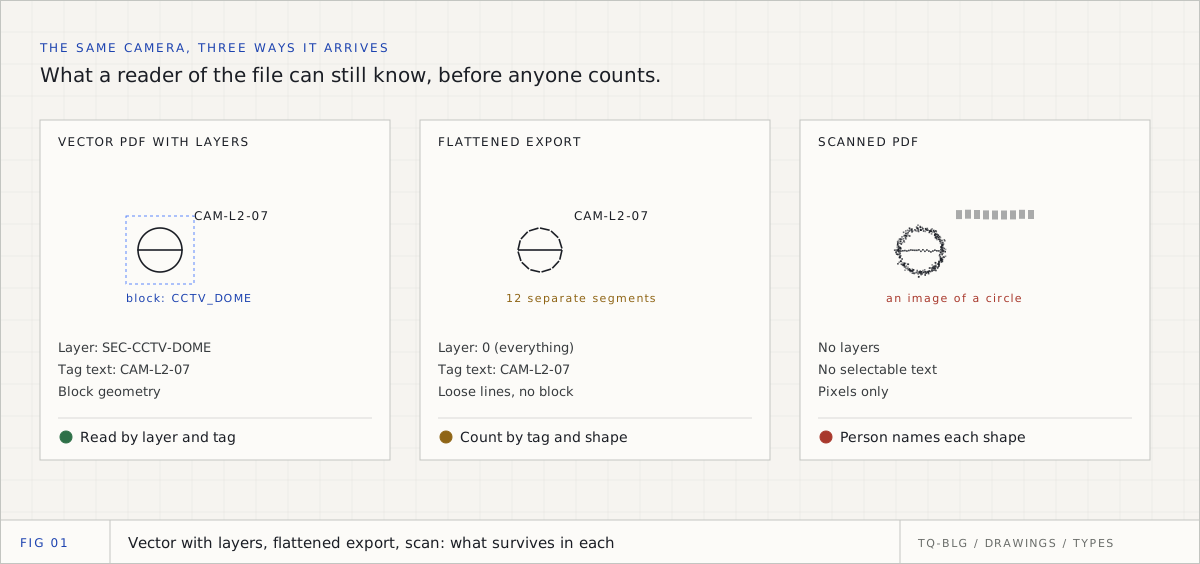
| Vector PDF with layers | Layer panel in your PDF viewer lists named layers; text is selectable | Lines, text, layer names, often block geometry | Usually nothing important | Read by layer and tag; verify by category |
| DXF | Opens in CAD with layers and blocks | Everything the consultant's model had, including attributes | Possibly external references not bound | Read by layer, block and tag |
| Flattened PDF (CAD or Revit export) | Text selectable, but no layers, or everything on one layer; symbols are loose lines | Geometry and most text | Block identity, attributes, layer meaning | Count by tag and shape; verify by second method |
| Scanned PDF | Text not selectable; the page is one image; slight skew or noise | What a person can see | Everything machine-readable | Count by shape, person names types; verify; ask for source |
Two quick tests settle most cases. Try to select a device tag as text: if you can, the sheet is vector. Open the layers panel: if it lists names like a consultant's security or ELV layers, you can read by layer.
Flattened CAD and Revit exports
A flattened export looks perfect and has lost the most useful thing in it. In the CAD model, a camera was a block called something like a fixed dome, on a CCTV layer, with an attribute for its type. In the flattened PDF it is a circle and two lines. The plot is identical; the meaning is gone.
What still works:
- Text. Device tags and room names usually survive as text, which makes tags the most reliable thing on a flattened sheet. A camera symbol drawn the same way for two camera types is ambiguous; the tags beside them (a different type code for each) are not.
- Geometry. Symbols can be found by shape, with the limits described below.
- Colour and line weight. Some exports keep layer colours. Treat this as a hint, never as a category.
What to watch for:
- Everything on one layer. Common in Revit exports. Layer-based reading is impossible; do not mistake "found nothing on the CCTV layer" for "there are no cameras".
- Mirrored text. Mirrored blocks can export their text reversed, so a lock tag can read backwards. Search for both directions if a category is suspiciously low.
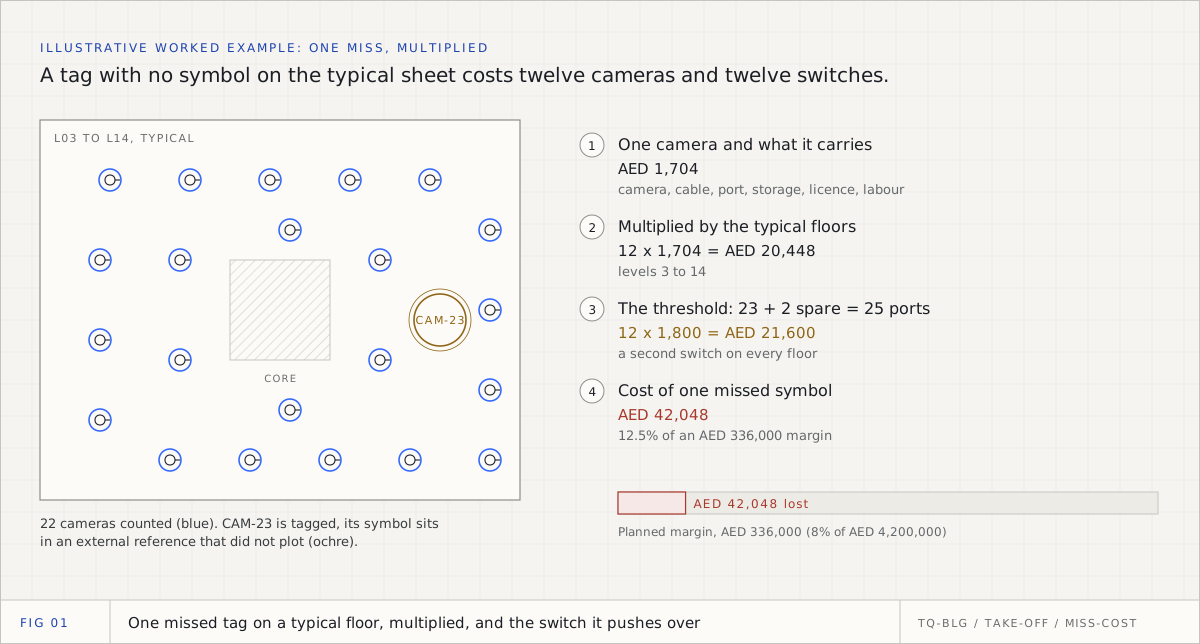
- Unbound external references. Devices drawn in an external reference may plot differently or not at all. A device tag with no symbol nearby is the giveaway.
Sheets with no legend, or a partial one
GCC tender sets regularly arrive with the legend on a different sheet, in a different package, on an earlier revision, or not at all. A legend that exists but lists no quantities is the normal case; a legend with building-wide quantities is a trap, because it tempts you to stop counting.
Build a provisional legend from the evidence the set still has:
- Tags. Collect every distinct device tag prefix on the sheets. Tags usually encode the type.
- Other sheets in the set. The same consultant tends to reuse the same symbols across systems and projects. A legend from the fire alarm package often explains a symbol on the ELV sheets.
- The specification and schedules. They list the device types the design expects. Every type in the specification should appear somewhere in your provisional legend, and every symbol in your legend should map to a specified type.
- The riser schematic. It shows what each floor connects, by type. A floor plan that seems to have no intercom stations when the riser shows an intercom distributor on that floor needs another look.
- Regulation as a sanity check. In Dubai, CCTV is designed to the SIRA specification, which sets minimum resolution and outdoor protection ratings; a camera type that would not meet it is probably being misread.
Then confirm it. Send the provisional legend as a tender query, and record in your assumptions that the take-off uses it. Watch the abbreviations: on an ELV sheet "SD" can mean a single data outlet, and on a fire alarm sheet a smoke detector. Never resolve an abbreviation without checking which discipline's sheet you are on.
Scanned PDFs
A scan is a photograph of a drawing. Nothing in it is machine-readable unless it is put through text recognition, and recognition on small rotated drawing text is unreliable. So:
- Scale first. Use the stated ratio in the title block, then check it against a known dimension on the plan. Scans are often printed at a different size than the original, which breaks "1:100 at A1" if the scan is of an A3 print. Measure nothing until scale is confirmed.
- Count by shape, name by person. Find instances of a symbol by its shape, but have a person decide what each group of shapes is. Shape is evidence of position; it is weak evidence of type.
- Expect lower confidence on small and dense symbols. Door hardware clusters, where a contact, a lock and a button sit within a few millimetres of each other, are where scanned counts go wrong first.
TrueQty sorts sheets this way before reading them: each one is triaged as ready to read, needing recognition, or needing a better PDF, so a scanned or flattened sheet is never returned as a quiet zero. On sheets that need recognition, the reviewer draws a box around one symbol, the engine finds every matching shape on the sheet (in all rotations and mirrored), and the reviewer names each group once. It finds where the shapes are; a person decides what they are. Flattened sheets are also read from their geometry: repeated symbol shapes that nothing named are grouped and offered once each, with a count and a picture, and once a team lead names a shape it is counted on every later sheet from that firm. A sheet too large to process automatically is stored for manual review, never counted as zero.
Why counting tools fail on ELV drawings
Automatic counting has become common in take-off software. On ELV sheets it fails in predictable ways:
| Failure | Why it happens on ELV | What it does to the count |
|---|---|---|
| Similar shapes, different devices | Readers, keypads and intercom stations are small rectangles; domes and detectors are circles | Merges categories |
| Rotation and mirroring | Devices are drawn at the angle of the wall they sit on | Misses instances the template does not match |
| Same symbol, different tag | A consultant draws all fixed cameras alike and distinguishes them by tag | One category where the BOQ needs two |
| Dense clusters | Door hardware sits within a few millimetres | Overlapping matches, double counts or misses |
| External references | Devices drawn in a referenced file | Tags present, symbols missing |
| Legend and schedules on the sheet | Symbols drawn in the legend panel itself | Legend entries counted as devices |
None of this makes counting tools useless. It means a count from a difficult drawing is a proposal, and the job is to verify it.
How to verify a quantity you could not count cleanly
These checks do not depend on trusting the count, which is why they work on bad drawings:
- Tags against symbols. Every device tag should have a counted symbol beside it, and every counted symbol of a tagged type should have a tag. A tag with no symbol nearby is almost always a missed device, often one in an external reference.
- Doors against hardware. For access control, every controlled door should carry its full assembly. A door with a reader and no lock is a miss, not a design.
- Floor against floor. Compare each floor with similar floors. A zero where peer floors have two or more, or a count above three times the median, gets a second look.
- Plans against the riser. Network devices on the plans against switch ports on the riser; one well-drawn riser schematic will expose a floor plan that has lost a dozen outlets.
- Empty regions. A region of a populated floor with no devices at all, surrounded by regions that have them, is often a symbol type the method did not recognise.
- Specification coverage. Every specified device type has a count or a written reason it has none.
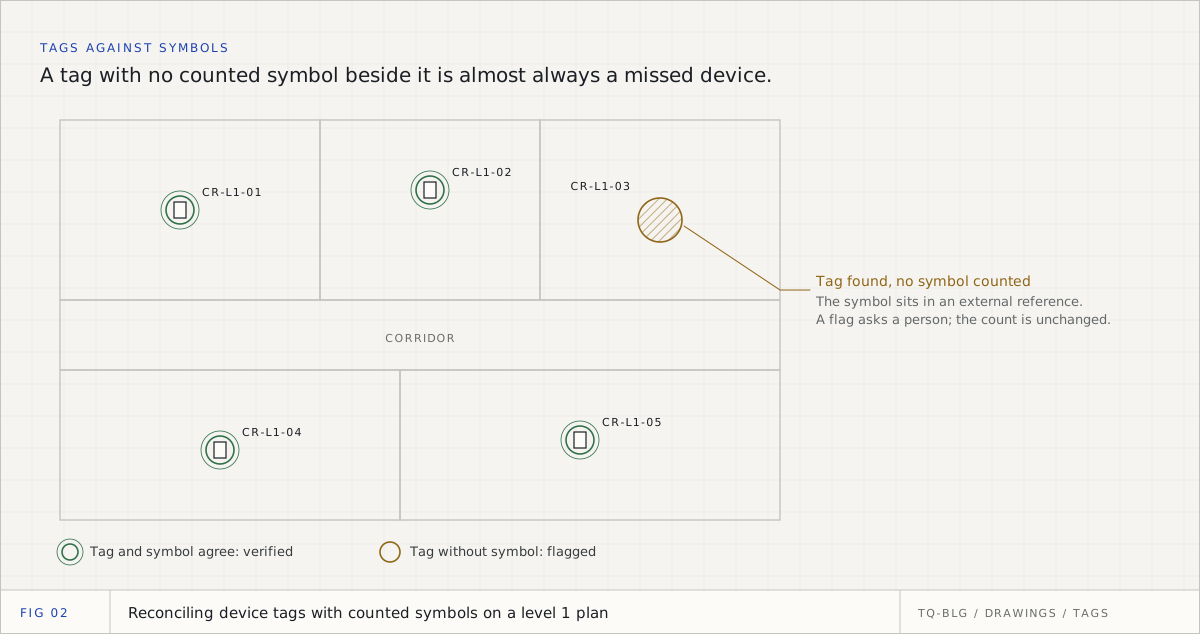
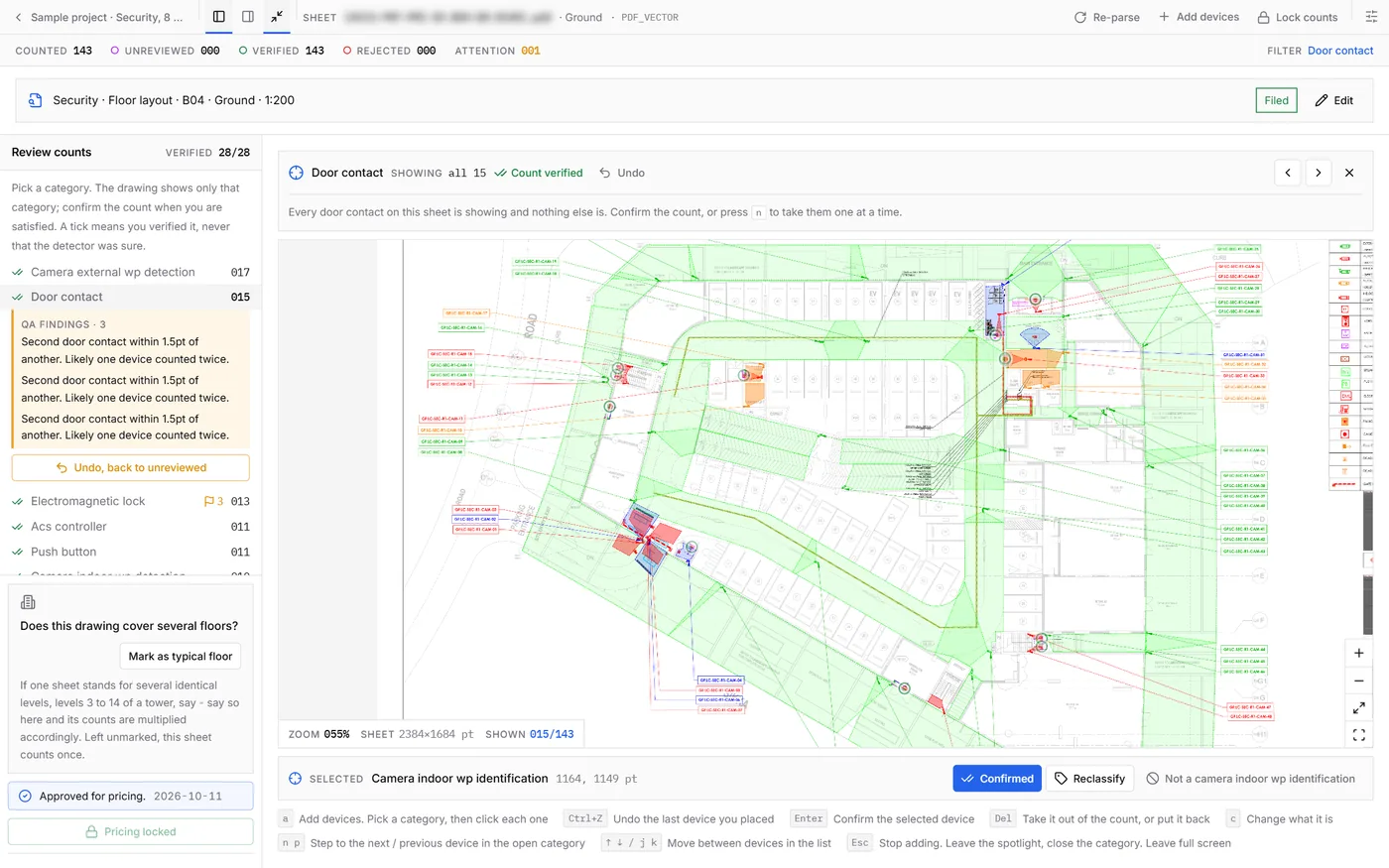
TrueQty runs checks like these as coverage flags: a device tag with no counted symbol nearby, a floor that is an outlier against its peers, an empty region surrounded by populated ones, a checked device that disappeared when the sheet was read again. A flag never changes a count; it asks a person to look. On one contractor's real ground-floor access control BOQ, the read matched exactly on door contacts (15 of 15), EM locks (13 of 13), push buttons (11 of 11) and face readers (3 of 3); the two devices it missed on that floor were drawn in an external reference, and both surfaced as flags. On a difficult drawing that is the realistic goal: not a perfect first count, but no miss that nobody was told about.
Ask for the source, and say what you priced from
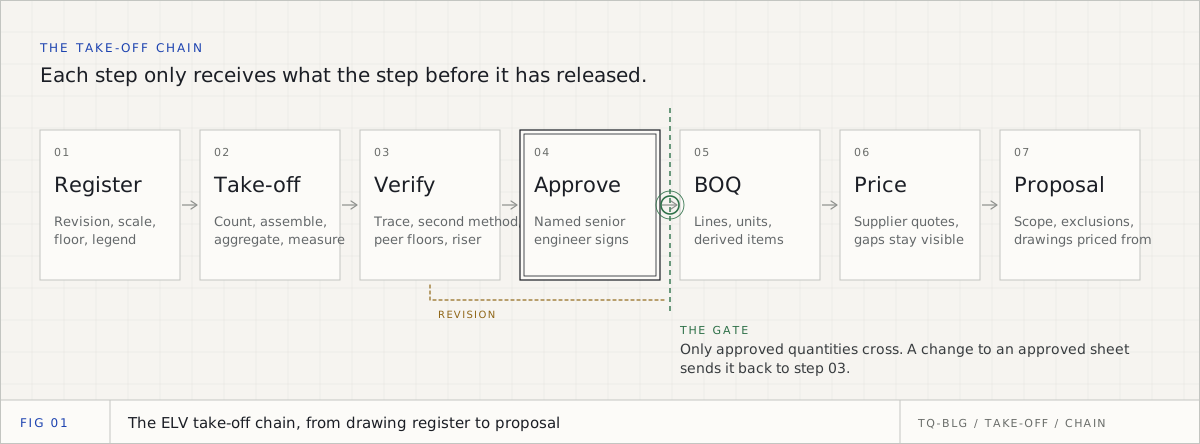
The cheapest fix for a difficult drawing is a better one. Ask for a vector PDF with layers, or a DXF, as a tender query, early. If it does not come, price from what you have and record it: which sheets were counted from scans, which from flattened exports, which legend was provisional. That record is what protects the tender when a quantity is challenged.
For the next step, from verified quantities to a priced bill, see the ELV BOQ worked example. For which tools handle difficult drawings and how, see the 2026 take-off software comparison, and for the full review workflow, the product tour.
Take off one real ELV sheet, with the evidence for every count on the drawing.
14 days, one full ELV tender, no card. Sign up with your work or personal email. You check every count, a team lead approves each sheet, and only approved sheets reach the BOQ.
Questions engineers ask
- Q01Can you do a take-off from a scanned PDF?
- Yes, but treat every number as needing a second check. A scan is a picture, so nothing can be read from layers, block names or searchable text; you count what you can see. Confirm the scale from a stated ratio or a dimension, count by symbol shape with a person naming each symbol type, reconcile against tags you can read, and ask for the CAD source when the sheet carries real money.
- Q02How do you identify ELV symbols when there is no legend?
- Use the evidence the sheet still has. Device tags beside symbols usually identify the type, the consultant's legend from another package or an earlier revision often uses the same symbols, the specification and schedules name the device types expected, and the riser schematic shows what each floor must connect. Build a provisional legend, have it confirmed in a tender query, and record it as an assumption.
- Q03Why does auto-count miss devices?
- Visual matching looks for shapes. On ELV sheets similar shapes mean different devices, the same device appears rotated and mirrored, identical symbols carry different tags, and some devices sit in external references that were not plotted in the same way. A tool that only matches shapes will miss some devices and merge others, and it will not tell you which.
- Q04What is a flattened drawing?
- A PDF exported from CAD or Revit where block definitions, attributes and often layers have been turned into plain lines and text. The symbol still looks right on screen, but the information that said this is a camera block on the CCTV layer is gone, so tools that read CAD structure cannot use it.
- Q05Should I ask the consultant for DWG or DXF?
- Ask when the sheet is flattened or scanned and the system carries enough value to matter, and ask early, as a tender query. A vector PDF with layers or a DXF lets you read what the CAD file knows; a scan makes you reconstruct it. Note in your assumptions which sheets were priced from which format.
Sources
Every external fact in this document is cited to one of these, fetched when it was written.

Zakaria is a mechanical engineer and the co-founder and COO of AI Agentiva in Dubai. He builds TrueQty, and writes here about how ELV quantities are counted, checked and priced, and where take-offs go wrong.
Related documents
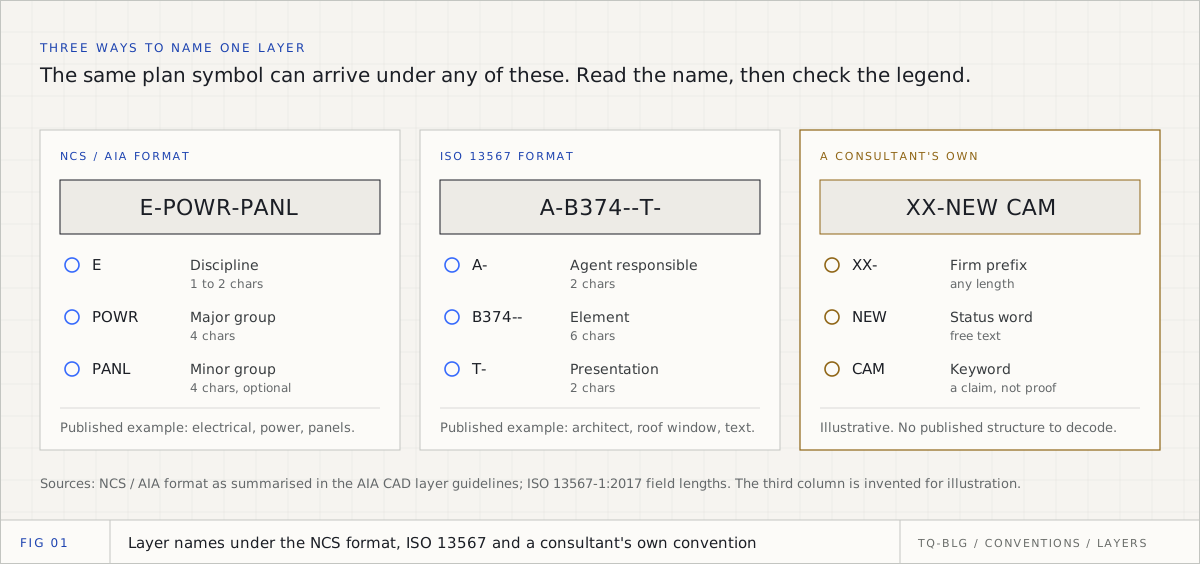
Every consultant draws it differently: CAD layers, legends and tag codes in ELV take-off
The same camera arrives on a different layer, with a different symbol and a different tag code, on every consultant's set. This is how to read a convention you have never seen, what the CAD standards say, and which evidence to trust before a device reaches the bill.
The hidden cost of manual ELV take-off: where devices get missed and what one miss costs
A manual ELV take-off rarely fails in a way anyone notices on the day. It fails when one missed symbol on a typical floor is multiplied twelve times and pushes a switch over its ports. This is where the misses hide, an illustrative AED example of what one costs, and the checks that catch them before the tender goes.
ELV quantity take-off: the complete guide for GCC pre-sales engineers
An ELV take-off is not one count. It is six kinds of reasoning across CCTV, access control, cabling, fire alarm, PA and intercom, checked before any number is priced. This is the whole process, written for the engineer who has to defend it.