
Every consultant draws it differently: CAD layers, legends and tag codes in ELV take-off
The same camera arrives on a different layer, with a different symbol and a different tag code, on every consultant's set. This is how to read a convention you have never seen, what the CAD standards say, and which evidence to trust before a device reaches the bill.
- Doc no
- TQ-BLG-261018-O3
- Rev
- Issued
- Author
- Mohammed Abdul Azeez
- Category
- Take-off
- Reading
- 8 min
To read a new consultant's ELV drawings, treat every layer name as a claim and the sheet's legend as the evidence. Check first whether the PDF still carries its CAD layers. Then confirm each device layer against a symbol in the legend. Count instances by the footprint of one symbol, not by gaps between shapes. Take device types from tag codes only where the legend or a written mapping defines them. Take each sheet's floor only from its title block. Write the convention down once, so the next sheet from the same consultant is read the same way.
This is a companion to take-off from difficult drawings and part of the ELV quantity take-off guide.
Why the same camera looks different on every set
A tender package in the GCC often arrives from a consultant you have not priced for before. The devices are familiar: cameras, card readers, door contacts, data outlets. The drawing of them is not. One firm puts every camera on a layer called something like SEC-CAM. Another uses a firm prefix and a status word. A third draws cameras on a layer with no camera keyword at all, and a fourth exports flattened PDFs where there are no layers left to read.
None of this is carelessness. CAD conventions are set office by office, and an ELV set is often drawn over an architect's background that follows a different office's rules again. The estimator's job is to read the convention before counting under it, because a count made under the wrong reading is wrong on every sheet at once.
What the CAD standards say
Two layer naming standards are widely published, and it helps to recognise both.
The US National CAD Standard absorbed the AIA CAD Layer Guidelines. A layer name is read left to right as fields separated by hyphens: a discipline designator, a four-character major group, up to two optional four-character minor groups, and an optional status. The published example E-POWR-PANL reads as electrical, power, panels. T is the discipline designator for telecommunications.
ISO 13567 uses fixed-length fields instead. Three are mandatory: the agent responsible (2 characters), the element (6 characters, usually from a classification such as CI/SfB or Uniclass) and the presentation (2 characters). The standard's own short example, A-B374--T-, is an architect's layer for roof window text. Optional fields add status, sector, phase, scale and more.
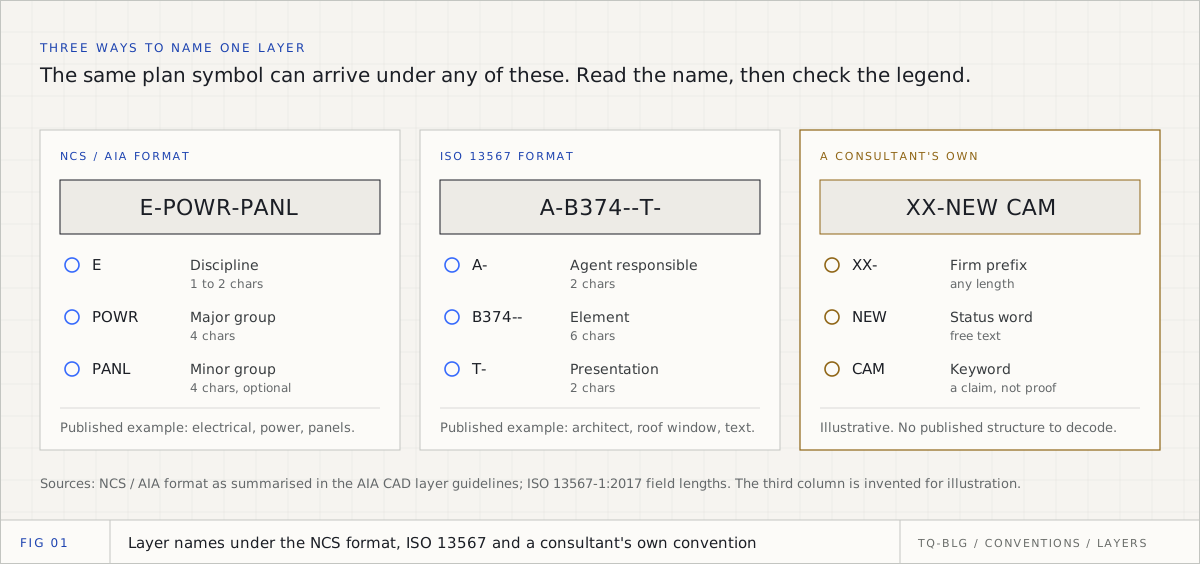
In practice, ELV layer names on tender sets follow these standards only some of the time, and a set rarely says which convention it uses. So the standards tell you how to decode a name that follows them, and remind you that a name that follows nothing is only a label someone typed.
First check: does the PDF still have its layers?
Layers only help if they survived the export. AutoCAD's PDF export has an option to include layer information, which "adds layer information to the PDF file so that you can turn layers on or off when viewing or printing PDF files". In the PDF, each CAD layer becomes an optional content group, the PDF specification's name for a layer. Flattening merges everything into the base content and removes that structure.
The check takes ten seconds: open the sheet in a PDF viewer and look at the layers panel.
- Layers listed. You can read device layers by name, subject to the legend check below.
- No layers. The sheet is flattened. Devices have to be found by symbol shape, and the difficult drawings chapter covers how to verify what you count that way.
Note in your take-off which sheets were read from layers and which from shapes. It changes how much checking each one needs.
The legend outranks the layer name
A keyword in a layer name is a claim, not evidence. A layer called A-DOOR is the architect's doors, not your door contacts. A layer with DATA in its name may hold cable routes or text, not outlets. Counting every object on a layer because its name contains a promising word is the fastest way to price devices nobody drew.
The evidence is on the sheet itself. A device layer earns its count when the legend shows a symbol drawn on that layer. Accessories need a second test: a camera pole counts as a pole only where it stands on a counted camera, never on its own.
This is how TrueQty reads device layers. A layer whose name suggests a system counts only when the sheet's own legend shows a symbol on it. A pole or bracket counts only where it sits on a counted device of its system. A layer the software cannot name is shown to the reviewer instead of being guessed.
Count instances by footprint, not by gaps
Once you know which shapes are devices, count them one by one. The usual shortcut is to treat any group of touching strokes as one device. That breaks on a common ELV detail: two cameras mounted back to back, or a card reader on each side of a door, drawn touching or overlapping. There is no gap between them, so a gap rule counts one.
The better rule measures one copy of the symbol where it stands alone on the sheet: its size, the strokes it is made of, the total length of its ink. A group carrying about twice that ink, made of pieces that each look like a whole copy, is two devices. A group that fails that test stays one, so a single symbol with a tail is never cut in half.
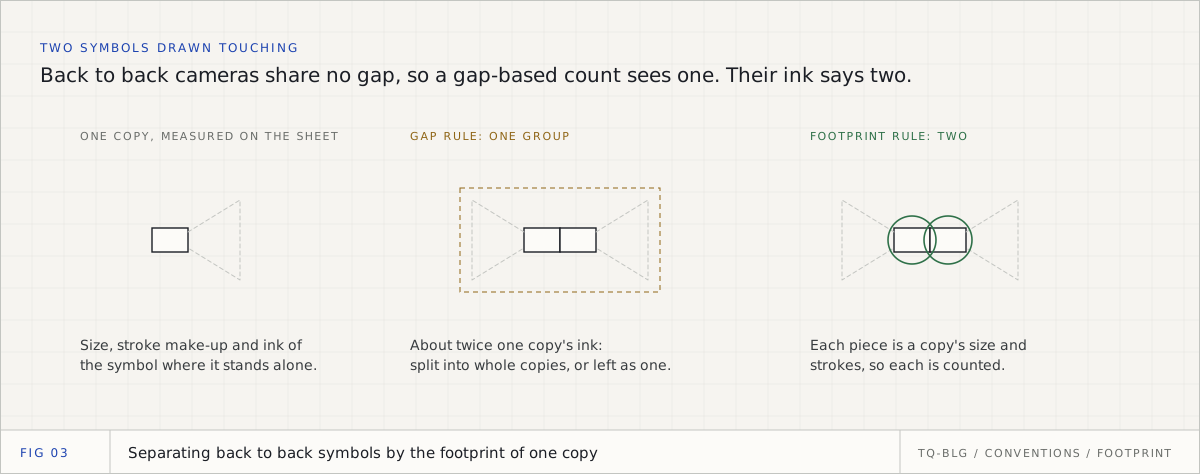
If you count by hand, the same check works: wherever symbols touch, zoom in and count the shapes, then compare with the tags beside them.
Tag codes: the type must be stated, never guessed
Many consultants tag each device with a type code and a number. The code is valuable, because it often separates a dome from a bullet, or an indoor camera from an external one, which the layer name does not. It is also easy to misread. Two letters that look like "dome camera" to you may mean something else in that consultant's legend.
Only two things can tell you what a code means: the legend printing the code beside a description, or a mapping someone has written down and checked. The letters alone are not one of them. Where neither exists, price the device as its system's generic type (an IP camera, a card reader), list the code as unconfirmed, and ask about it in a tender query. A generic line priced honestly is safer than a specific line priced on a guess.
TrueQty works this way. Each device is paired with the tag drawn beside it. A code takes a specific type only from the sheet's legend or from the firm's own mapping, set once by a team lead in review. Everything else stays generic and appears under Device types to set, with how many of each. Setting a code once types those devices on that sheet and on every later sheet from that firm, and the specific type flows through to the bill and to supplier matching.
The title block decides what the sheet is
Typical floors are where small errors become large ones. One floor plan stands for ten floors, so its quantities are multiplied by ten. That multiplication is only safe when you know exactly which floor the sheet is, and the reliable place to read that is the title block: the drawing number, the title and the floor, in the box the consultant fills in for every sheet.
Two traps are common. A floor number that is read too loosely: Basement 02 read as Basement, then filed as the first basement. And a floor taken from somewhere other than the title block: a ramp note, a stair callout or a room label that happens to contain a level name.
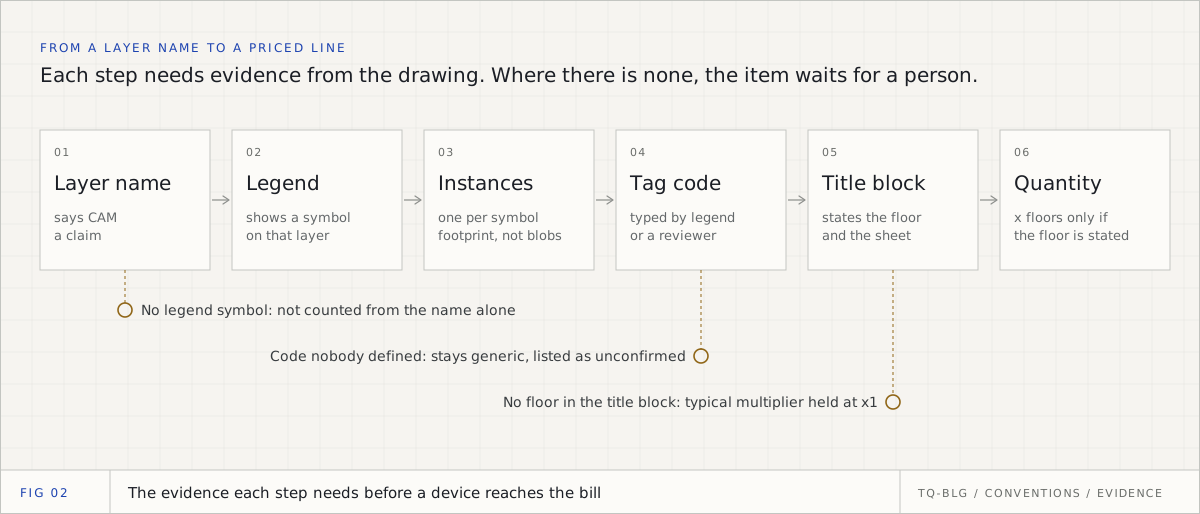
TrueQty finds the title block from where the drawing number is printed and reads the sheet's title and floor from that block only. A sheet whose title block could not be read, and whose floor nobody has confirmed, keeps its typical multiplier at one. Its approval is refused until a person confirms the floor, and the take-off, the BOQ and the cable schedule all follow the same rule.
Write the convention down once
The first sheet from a new consultant is slow because you are learning their convention. The tenth should not be. Whether you use software or a spreadsheet, keep a convention sheet per consultant:
| What to record | Example entry |
|---|---|
| Layer export | Layers present on plans; risers flattened |
| Device layers and their systems | The camera layer is CCTV, confirmed by the legend on sheet 01 |
| Unnamed symbols | Small square with a cross is a door contact, named on sheet 03 |
| Tag codes and their types | A code confirmed from the legend as an external camera |
| Title block position and floor format | Bottom right strip; floors written as Level 03 and Basement 02 |
In TrueQty this is built in. A team lead tags an unrecognised layer or a repeated unnamed symbol once, from the review screen, and it is counted on every later sheet the firm uploads. The convention belongs to your firm, so another firm's choices never change your counts. Each change is recorded with who made it.
A checklist for a new consultant's set
- Open the layers panel on one sheet of each type: plan, riser, schematic. Record which are flattened.
- Read the legend in full before counting anything. Note symbols that have no description.
- For each layer that looks like a device layer, find its symbol in the legend.
- Wherever symbols touch, count shapes, then check against the tags.
- Map tag codes to types only from the legend or a written mapping. List the rest as unconfirmed.
- Read each sheet's floor from the title block. Do not apply a typical multiplier to a sheet without one.
- Raise tender queries for missing legends, undefined codes and sheets with no floor.
- Save the convention sheet with the project, so the next package from this consultant starts from it.
For what comes after the count, the ELV BOQ worked example takes quantities through to a bill, and the take-off guide sets out the whole chain from drawing register to proposal.
Take off one real ELV sheet, with the evidence for every count on the drawing.
14 days, one full ELV tender, no card. Sign up with your work or personal email. You check every count, a team lead approves each sheet, and only approved sheets reach the BOQ.
Questions engineers ask
- Q01Is there a standard for CAD layer names?
- Two are widely published. The US National CAD Standard, which absorbed the AIA CAD Layer Guidelines, builds names from a discipline designator, a four-character major group, optional minor groups and an optional status, as in E-POWR-PANL. ISO 13567 builds names from fixed-length fields, with three mandatory: agent responsible, element and presentation. Many ELV consultants use neither, so read the legend before trusting a layer name.
- Q02Can I count devices from a PDF's layers?
- Only if the PDF still has them. AutoCAD can write layer information into a PDF, where each CAD layer becomes a PDF layer you can switch on and off, but flattening removes that structure. Open the layers panel in your PDF viewer first. If it is empty, the sheet is flattened and you count by symbol shape instead.
- Q03What should I do with a device tag code I do not recognise?
- Do not infer the type from the letters. Look for the code in the legend, then in the specification and the schedules. If nothing states what it means, price the device as its system's generic type, list the code as unconfirmed, and raise a tender query.
- Q04Why does the title block matter for quantities?
- It is the sheet's own statement of what it is: the drawing number, the title and the floor. A typical floor multiplier is only safe when the floor is stated there. A floor read from a stray note on the plan, or assumed, can multiply a whole floor's devices onto the wrong count.
Sources
Every external fact in this document is cited to one of these, fetched when it was written.
- [01]draftsperson.net, The AIA CAD layer formatblog.draftsperson.net
- [02]National Institute of Building Sciences, United States National CAD Standardnationalcadstandard.org
- [03]Wikipedia, ISO 13567en.wikipedia.org
- [04]Autodesk, AutoCAD LT 2026 Help: Export to PDF Options Dialog Boxhelp.autodesk.com
- [05]Mapsoft, PDF Layers (Optional Content Groups)mapsoft.com

Mohammed is the co-founder and CEO of AI Agentiva in Dubai. He runs the company and its work with contractors, and writes here about how ELV tenders are read, counted and priced.
Related documents
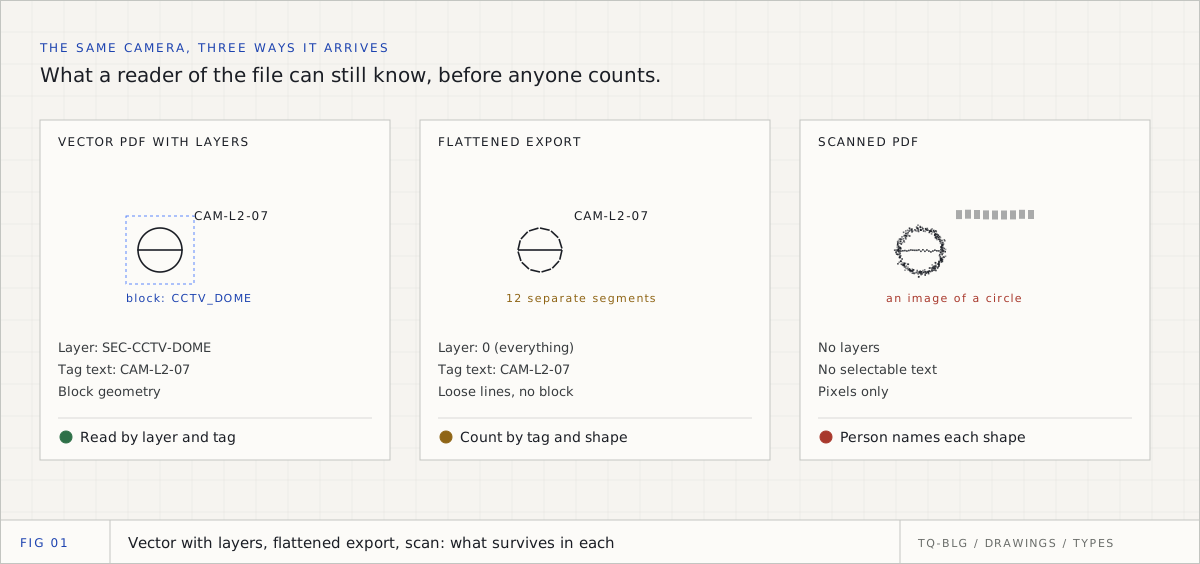
Take-off from difficult drawings: flattened Revit exports, no-legend sheets and scanned PDFs
Most tender drawings are not clean CAD. This is how to diagnose a sheet before you count it, what each kind of difficult drawing loses, why automatic counting goes wrong on ELV symbols, and the checks that verify a quantity you could not count cleanly.
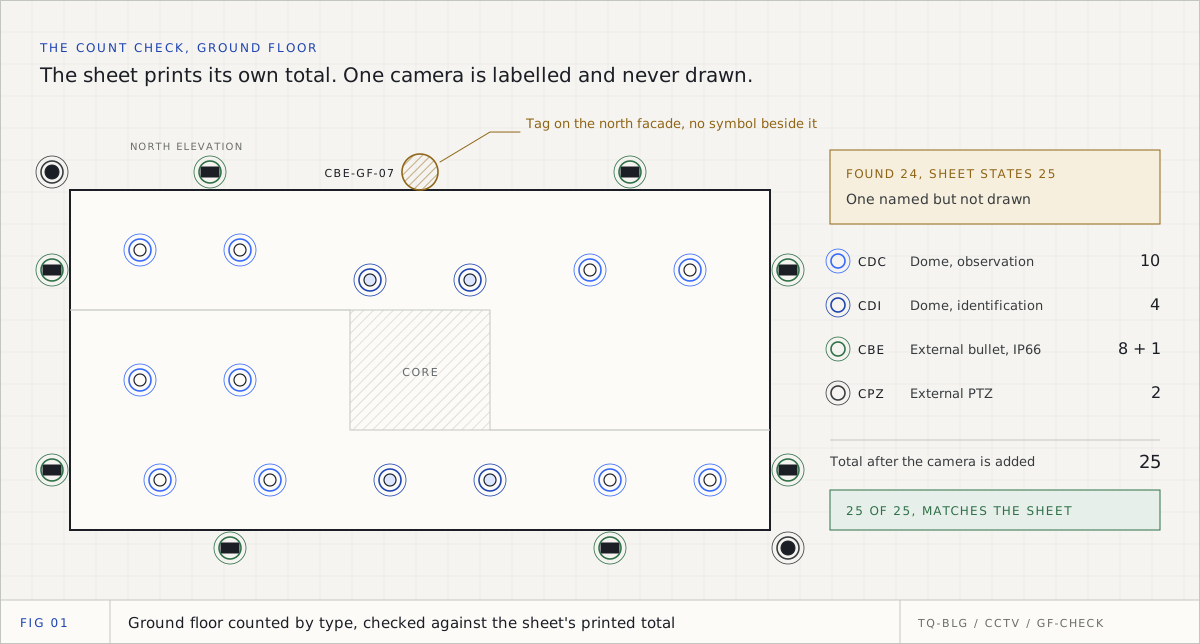
CCTV take-off from drawings: how to count cameras by type on a GCC tender set
A CCTV take-off is not one number. It is a count of every camera by type, floor by floor, read from tags, layers and legends, checked against the totals the consultant prints and approved before it is priced. This is the method, with a worked 108-camera example.
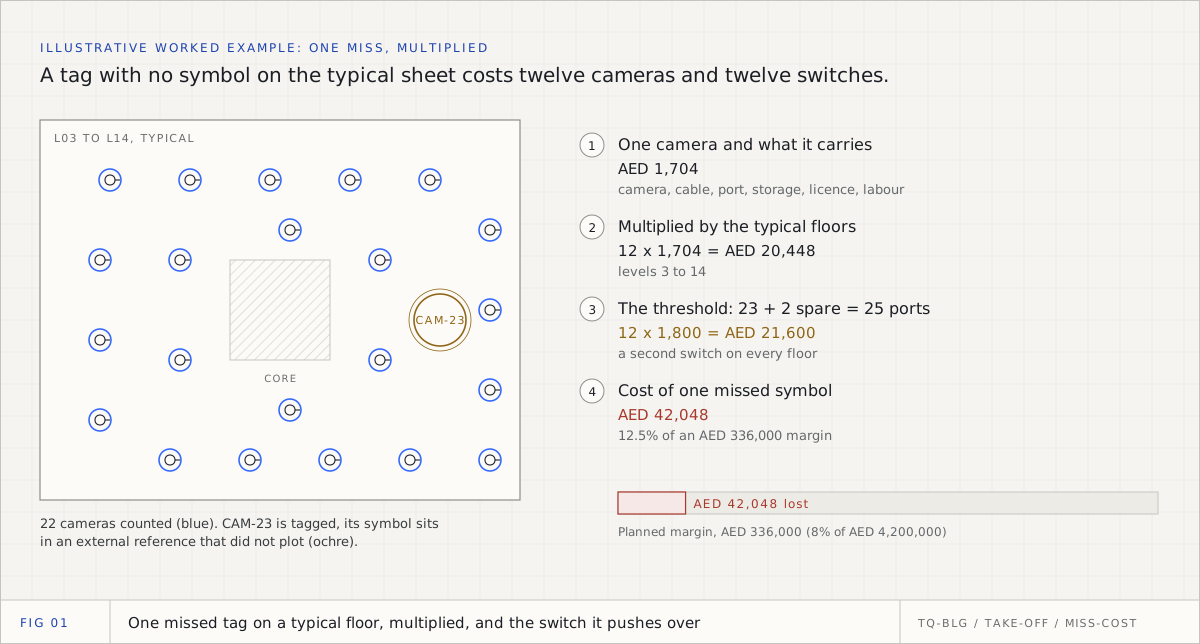
The hidden cost of manual ELV take-off: where devices get missed and what one miss costs
A manual ELV take-off rarely fails in a way anyone notices on the day. It fails when one missed symbol on a typical floor is multiplied twelve times and pushes a switch over its ports. This is where the misses hide, an illustrative AED example of what one costs, and the checks that catch them before the tender goes.